
By Martin Jansen, Owner of Jansen-PCINFO
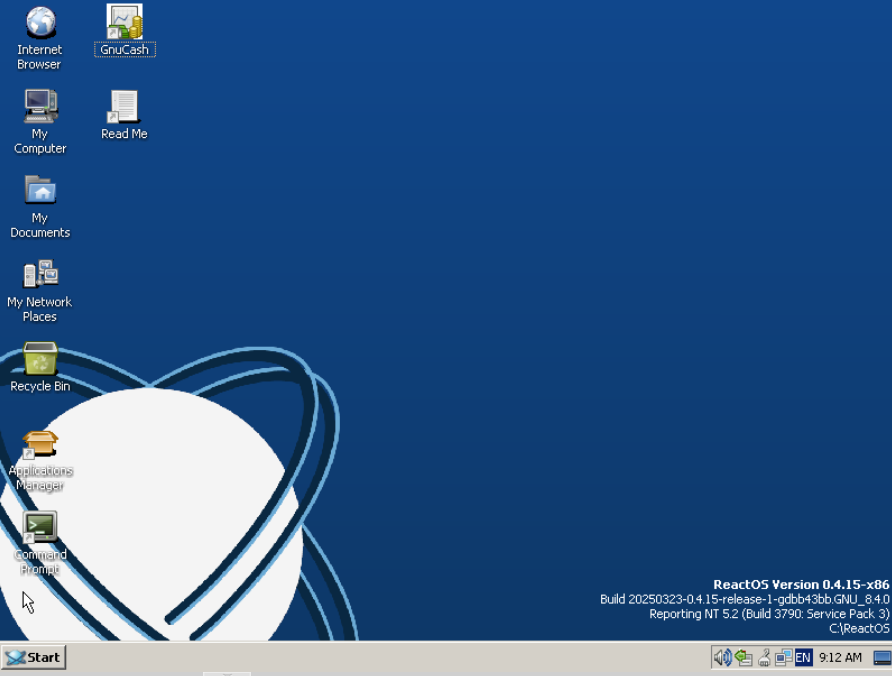
Yesterday, I went on a trip down memory lane. I successfully installed ReactOS which looks a lot like Windows XP or Windows 2003 server.
My attempts to install ReactOS on some of my older computers were unsuccessful, which made me turn to virtualization. But instead of Virtualbox I used Proxmox VE, their advertising:
Proxmox Virtual Environment is a complete, open-source server management platform for enterprise virtualization. It tightly integrates the KVM hypervisor and Linux Containers (LXC), software-defined storage and networking functionality, on a single platform. With the integrated web-based user interface you can manage VMs and containers, high availability for clusters, or the integrated disaster recovery tools with ease.
Don’t let the word “enterprise” scare you, Proxmox does allow for home use and free repositories for updates to the Debian “Trixie” system.
Old Desktop Computers
With Microsoft demanding that Windows users switch to Windows 11, there are plenty of older computers available at low prices. I just happened to have an older fourth generation i7 HP EliteDesk computer that my brother-in-law no longer needed, because he bought a new Windows 11 computer.
As an aside, (and I know I am beating a dead horse) I don’t understand why people want to stick with Microsoft Windows. Windows 11 is a different operating system from Windows 10, so why not use Linux Mint and keep your perfectly good PC? The user is going to have a learning curve anyway, so learning Linux Mint is the better (and cheaper) way to go. You’ll also be saving the planet from so many junked PCs going into landfills. OK, I’ll get off the soapbox and back to the subject.
Hard Drive or Solid State Drive
Having a larger hard drive or SSD is beneficial to running more virtual machines. I have a one terabyte solid state drive in the HP.
Memory
Again, more memory in the system allows for more virtual machines. I’m starting with 16 gigabytes in the HP.
Installing Proxmox
If you’ve ever installed an operating system before, it’s pretty easy. Just make sure you pick the right installation drive. Others have gone over this subject, here is a link.
Creating First VM
After the installation of Proxmox VE and adjustments to the repositories, I ran the general “sudo apt update && sudo apt upgrade -y” command in a SSH terminal connection to update the system. Now it is time to install my first Virtual Machine.
ReactOS
I’ve always been intrigued by ReactOS which is a free and open-source operating system for i586/amd64 personal computers that is intended to be binary-compatible with computer programs and device drivers developed for Windows Server 2003 and later versions of Microsoft Windows. It’s like Windows without Microsoft.
The problem is that it doesn’t run well or at all on most newer hardware, but I found that it does run in a Virtual Machine. The latest version is 04.1 and it is still considered to be in Alpha development. There’s not much information on how to install it on Proxmox, but I installed it successfully and it appears to be stable.
The key to the installation is to pick Windows XP/2003 for the machine. The rest is pretty much default settings as in this image:
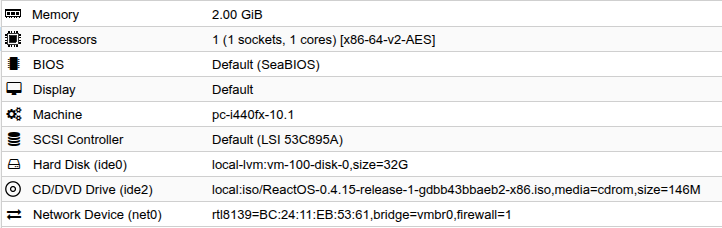
Notice the hard disk is IDE, not SATA, which gives you an idea how old the virtual hardware really is. And yes, it is quite snappy at only 2 GB ram and 32 GB storage.
The installation was looking for some drivers when I started, but I bypassed those requests and ReactOS is running great. I enjoyed an old game of solitaire without all the bells and whistles of modern games.
Conclusion
With Proxmox up and running my next VM will be LMDE, a version of Linux Mint based upon Debian instead of Ubuntu.