
By Martin Jansen, Owner of Jansen-PCINFO
My wife and I use Linux Mint Cinnamon 22.2 as our daily operating system as mentioned in my last article. We use Linux Mint for 95 percent of our computing duties, but there are times when accessing a Windows 11 computer is necessary.
Hallmark Card Studio
Occasionally my wife and I create customized cards using Hallmark Card Studio. I could not find a suitable Linux compatible program.
I guess I could use LibreOffice Draw to try and emulate the process of creating cards, but that is too manually intensive work. To create a bi-fold 8.5 x 11 card, I would need to measure exactly where the text and images would have to be placed. Some of those images and text would have to be placed upside down. Then, on some printers, I would need to print the first page, reload the printed sheet and print the second page.
If anyone really wants to manually create cards using LibreOffice Draw or Scribus. This person created templates: https://pclosmag.com/html/Issues/201405/page11.html
There is Greetings Island, but we don’t want to pay yearly subscription fees.
Brother Label Printers
We like to stay organized by printing labels for the whole family. We had a QL-500 label printer that was directly connected to my wife’s computer via USB cable. It was ridiculously difficult to share this printer with others in the family. The best way to print labels in all sizes was to print using P-touch Editor (Brother’s dedicated software) in Windows.
We retired the QL-500 in favor of a used QL-720NW which is better. The NW part means that we can connect it through our local area network (LAN). The firmware in the printer contains all label sizes and it is automatically recognized by Linux Mint. gLabels Designer 3 software works well to create labels without having to use Windows.
Windows 11 Mini-Computer
It would be nice to have a Windows 11 computer for occasional use and experimentation with other Windows software, but we didn’t really want to dual boot with Linux Mint anymore.
And, in my opinion, Windows 11 is too big an operating system to use in a virtual machine. Frequent updates in Windows make it difficult to use occasionally. No, we want a computer that would run Windows alone and stay updated.
I went in search of a computer that would run Windows 11 and be less than $200. I wanted at least 16GB ram and 500GB NVMe storage with the best possible processor.
My search ended with a BOSGAME Mini PC E2, AMD Ryzen 5 3550H Mini Computers, 16GB RAM 512GB NVMe SSD. While the processor is a little older, it is still much better than the cheap Atom and Celeron processors available from Intel. As a bonus, the computer comes with a USB-C port for fast backup purposes.
When I received the computer I set it up Windows 11 with a local account, rather than connecting it with an account to Microsoft’s OneDrive. OneDrive has only 5GB of storage for free.
NoMachine
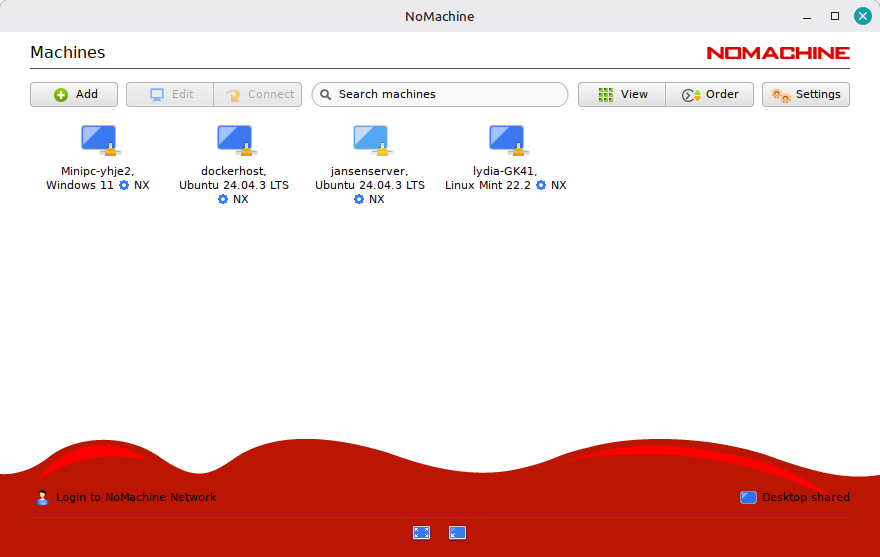
Rather than using VNC, I choose NoMachine to remote into the Bosgame Mini PC. NoMachine is free for personal use and scales the display as if the user were in front of a remote Windows desktop.
The only problem was when I disconnected the monitor on the Bosgame. I soon discovered that I needed to use a Dummy Plug 4K HDR,Virtual Monitor EDID Emulator, Headless Display Adapter. This dummy HDMI plug makes the computer think that it is connected to a full sized display.
Conclusion
Now my wife and I can connect to the Windows Mini-Computer whenever we need to create cards or experiment with some Windows software. The computer stays updated because it is constantly on and waiting to be used. The local account minimizes the amount of advertising from Microsoft and others.