
By Martin Jansen, Owner of Jansen-PCINFO
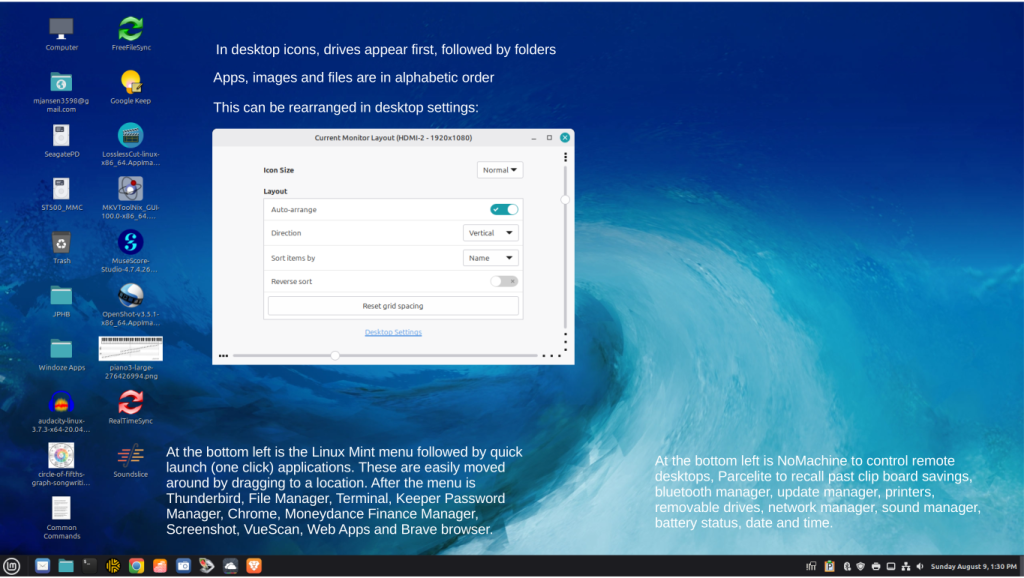
As a follow up to my last article, I thought it would be good to provide a pictorial guide to using Linux Mint. After you turn on the computer a few seconds later you are presented with the Linux Mint Cinnamon desktop. Users can easily change the desktop background image and colors to your desires by setting up themes:
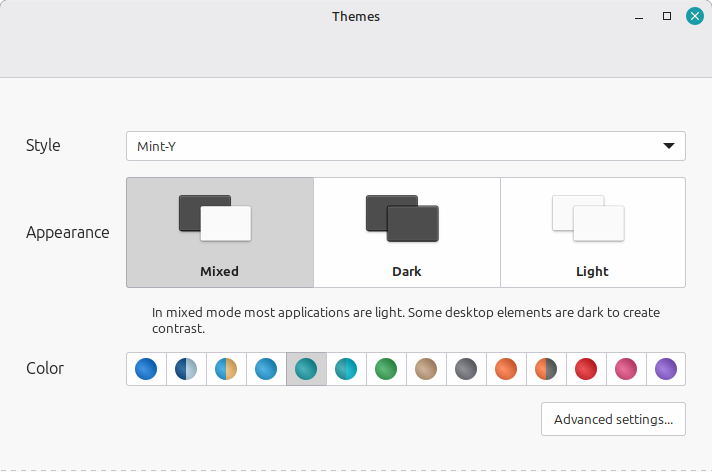
For more finite control, users can go into Advanced settings.
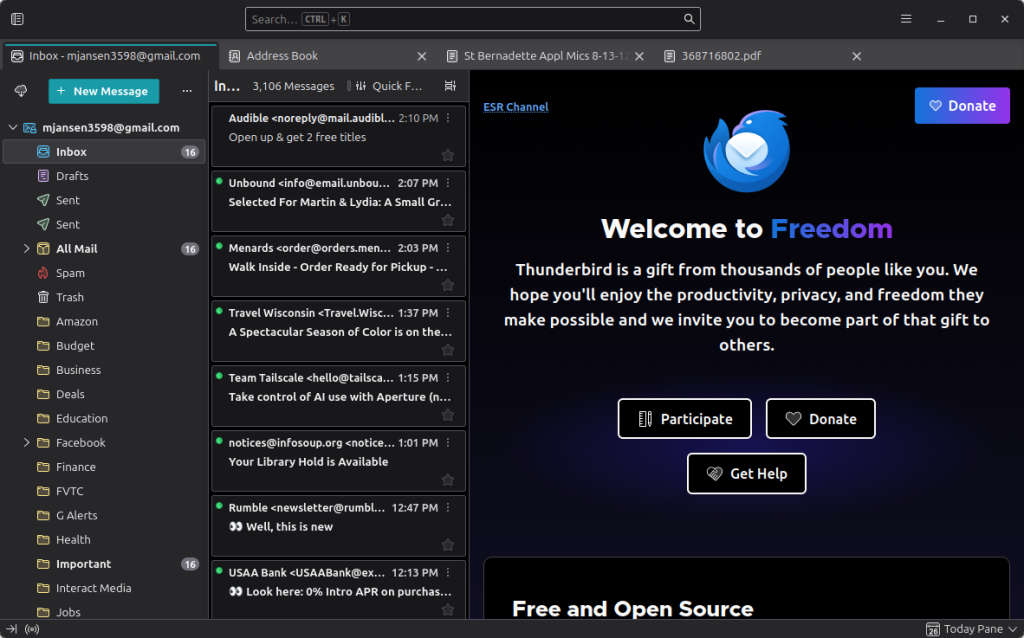
One of the first things I do in the morning is to look at my email using Thunderbird. All my email addresses in one package:
Some of my emails contain links to websites which open in my default browser, Google Chrome:
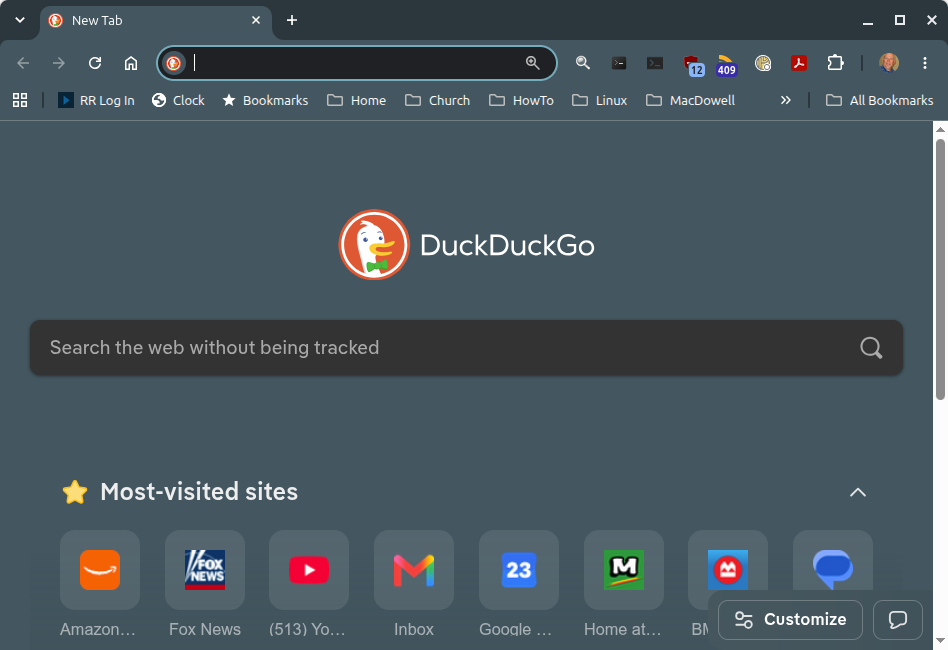
I control which is my default browser and I choose DuckDuckGo as my search engine.
When I write articles, I have the choice of LibreOffice or Google Docs. I prefer Google Docs where I can copy and paste text and images in my WordPress based website:
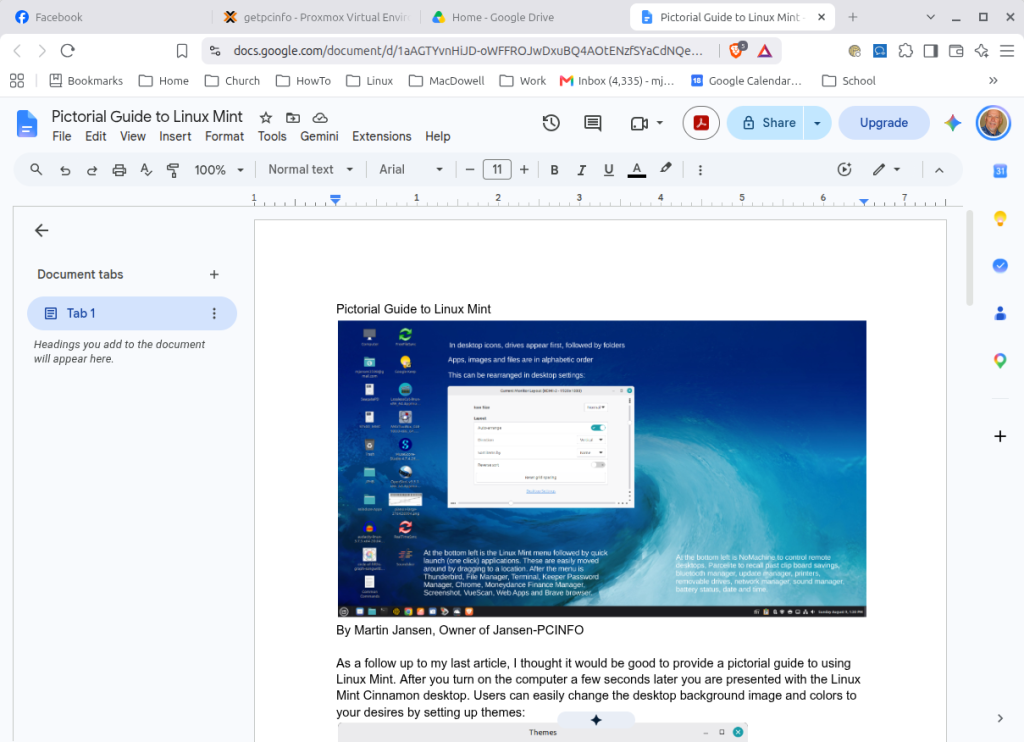
In my article from a few years ago, Home Paperless Office, Vuescan plays an important part in keeping our office clear of piles of paper:
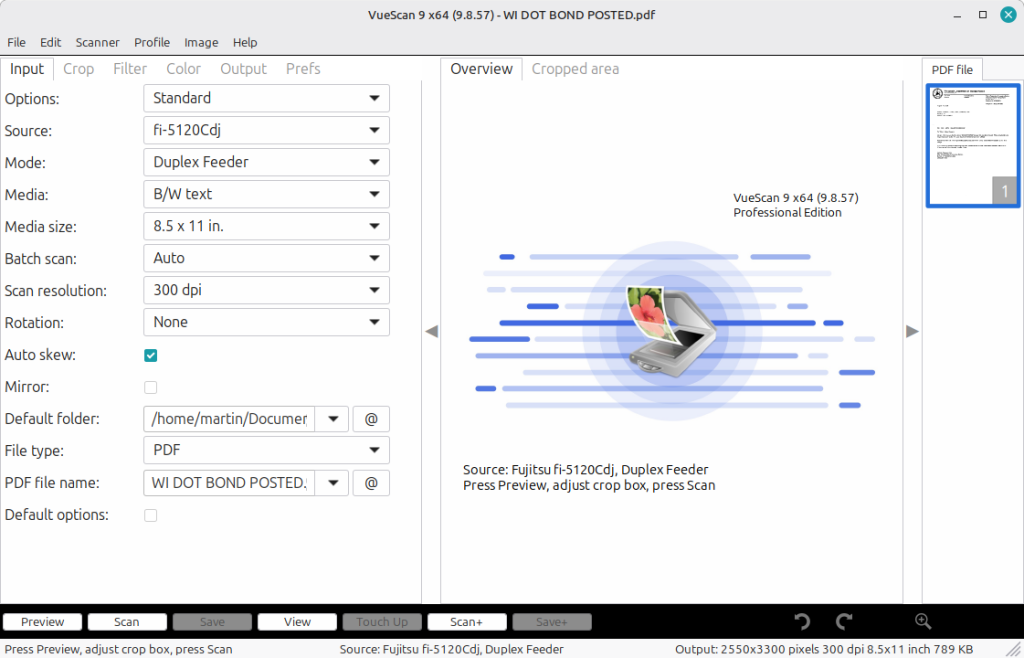
We find that VueScan works better when saving files to a local directory rather than the network.
Vuescan also does a great job with old photographs where it uses AI to identify the edges. Several photos can be put on the platen and each photo can be saved as JPG files individually.
Time to take a break and play some Solitaire. I use AisleRiot and and KPatience:
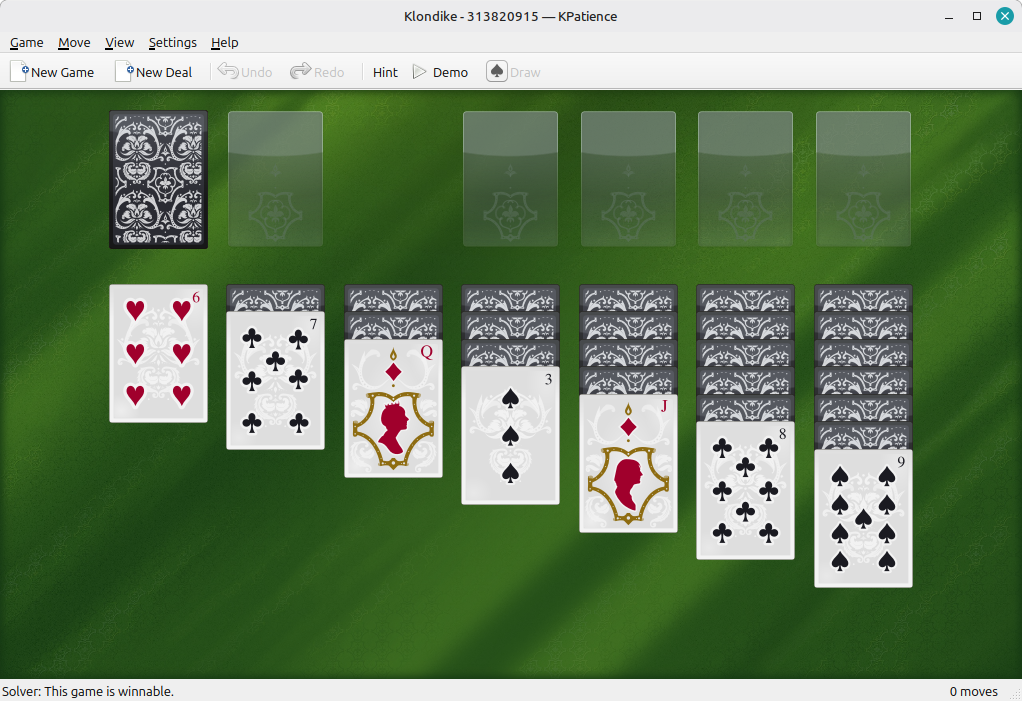
Can you guess my first move?
Some people think that Linux cannot play games, but that has never been true. And now many manufacturers are targeting the Linux platform for gaming enthusiasts.
As a musician, I have to keep on top of my music. For that, I have several tools. One is MuseScore and the other is the web-based SoundSlice:
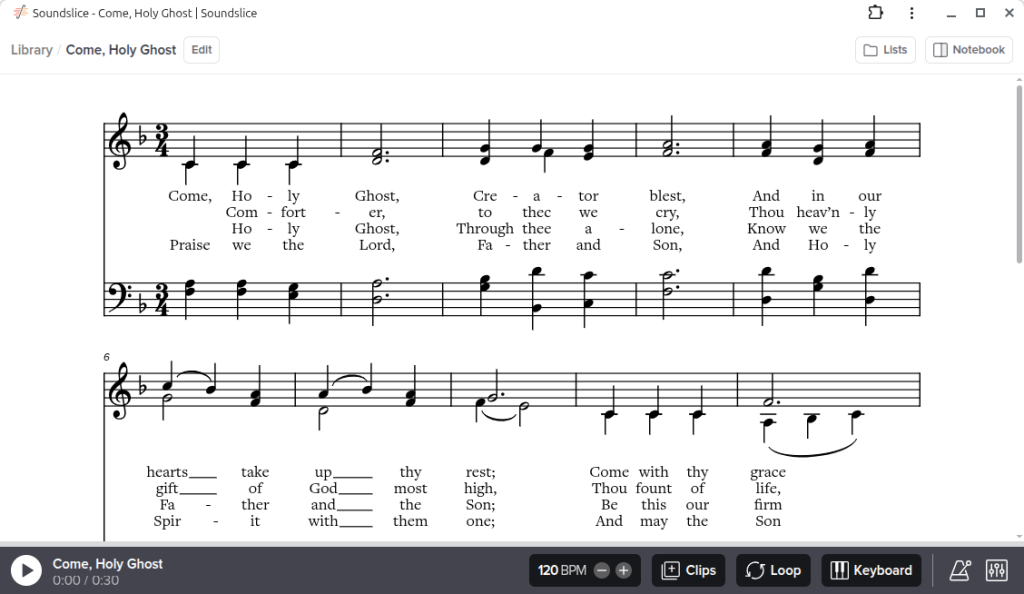
Linux Mints allows for the creation of Web Apps which directly connects to the most pertinent websites.
Of course all the websites require credentials. For that our family has made the financial decision to store all our usernames and passwords in Keeper. It’s not cheap, but very much worth the investment. Keeper has an extension usable in Chrome:
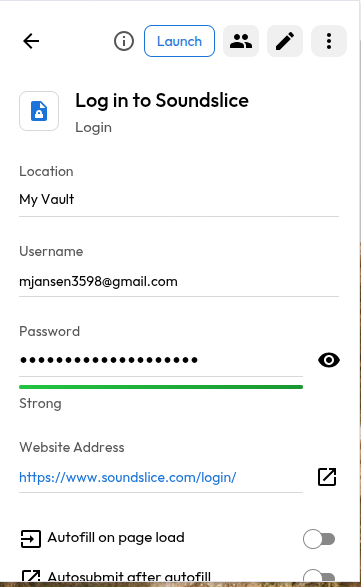
There’s also a client that can be installed in Linux, Windows and macOS.
From time to time I need to capture an image. A simple tool is available in Linux Mint called, amazingly, Screenshot:
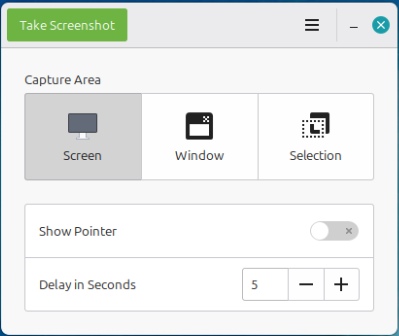
Snip & Sketch is available in Windows, while Macs use a more sophisticated screenshot tool that allows for editing the image before it is saved.
Once the image is created, I too can edit the image by using several tools. My favorite is LibreOffice Draw:
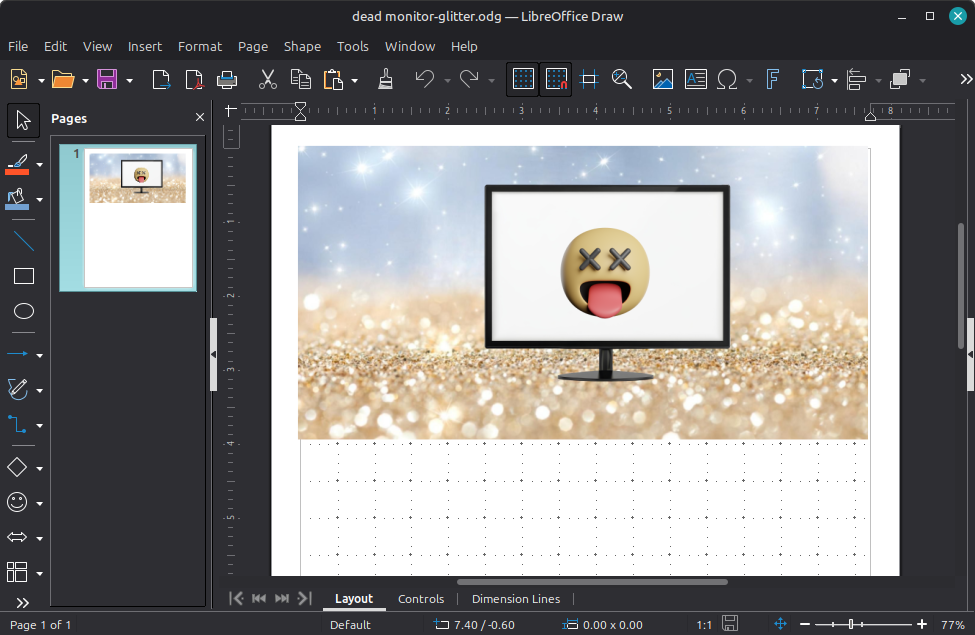
I can layer images on top of each other, then use ScreenShot for the complete image.
Conclusion
Some may say that the screenshots gathered here are not very pretty, and that is true. Linux Mint focuses on getting things done in a practical way. I guess that is my style as well as I value function over form. But that does not mean that Linux Mint cannot be customized to look beautiful, I just don’t have the time or patience for that sort of effort.
With the advent of web apps and with the over 60,000 apps available in the Software Manager:
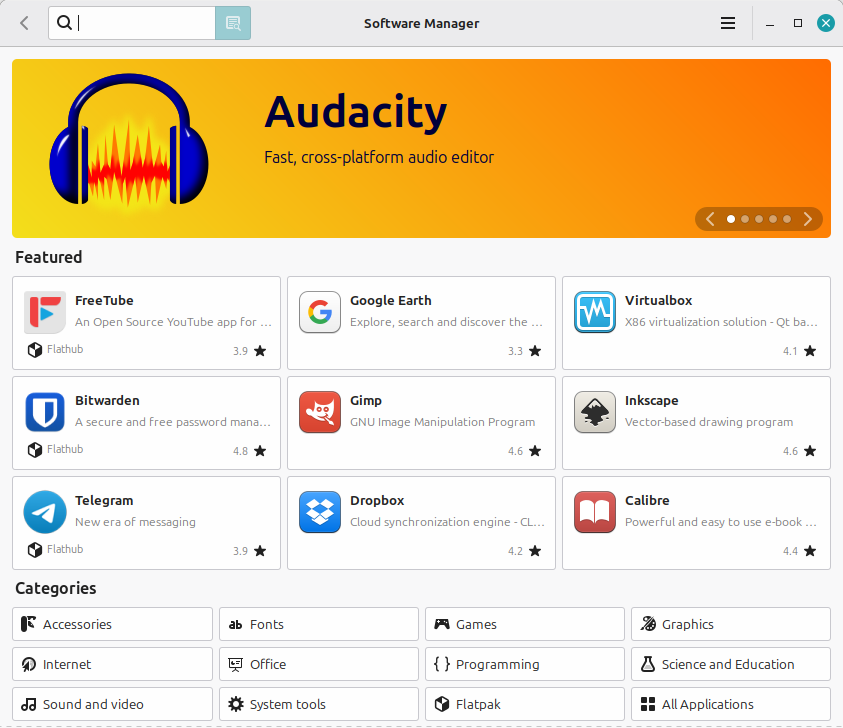
I rarely find that I long for Windows apps.
Life is good with Linux Mint.