
By Martin Jansen, Owner of Jansen-PCINFO
When you buy an Android phone and have a Google account, you are given 15GB of storage on Google’s cloud services for free. That’s a pretty good deal considering that Apple and Microsoft only offer 5GB of free storage.
Even at 15GB, however, it’s pretty easy to fill that space with photos and videos taken on your phone. Google, by default, sets Android phones to back up to the cloud. This includes any videos and photos you may take. Media is first stored on the phone and then, on WIFI, it is backed up. Additionally, Android phones are set to backup phone settings to the cloud.
When you come close to exceeding your cloud space, Google will send messages warning of the space shortage and offering additional space for the price of $1.99 a month or $19.99 a year. Follow this LINK for other Google One upgrades.
I have opted for the Basic plan which gives me 100GB of storage. Despite many years of use my storage needs are modest compared to many. Currently I am at 17 percent of my available storage or 17GB.
Technology Help
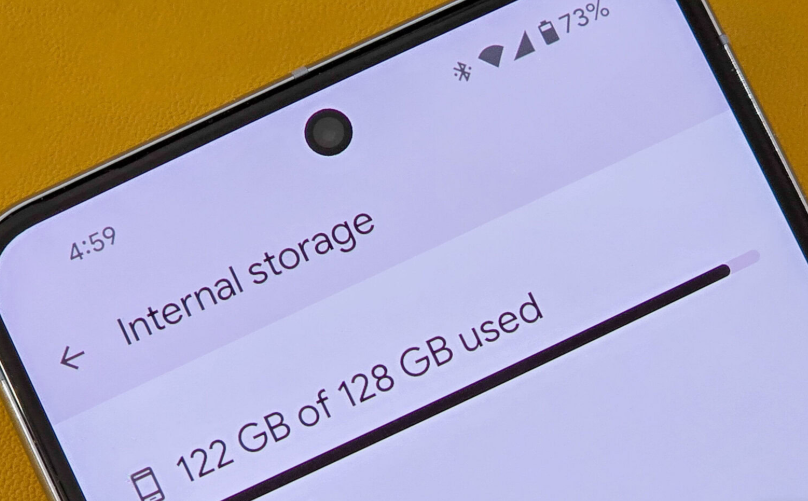
I volunteer at the Appleton Public Library two days a week for two hours at a time. Many people come to me with their Android phones and storage issues. One Patron had a decent Samsung phone, but it only had 64GB of onboard storage.
The Android 15 operating system alone can take up to 30 to 40GB of storage, especially with cached browser storage. Now add many apps, videos and photos and storage becomes critical.
So, what is a Google user to do?
First, when you buy a phone, make sure it has at least 128GB of internal storage. Second, you can manage your storage. Google provides the tools to seek out and find the largest files for backup and deletion.
Your phone may have the capability to add a micro SD card to add to storage capabilities. And settings may allow for saving pictures to the SD card. It really depends on the phone manufacturer as to whether this can be done.
Alternatively, Sandisk makes a nice 64 or 128GB USB C and A drive that can be used to offload large files:
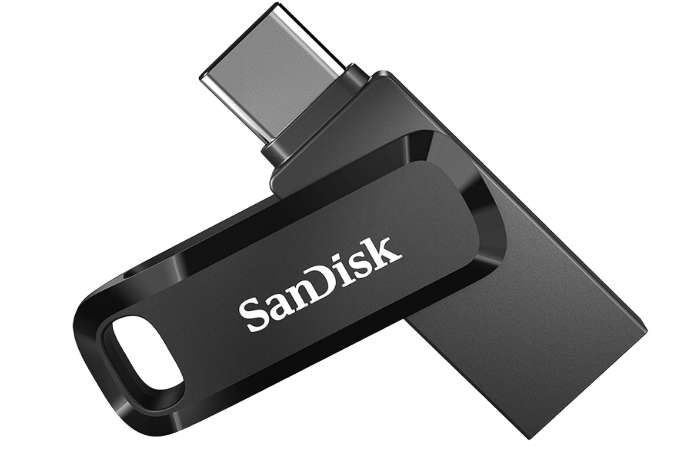
The USB C side can be plugged into the phone and should be recognized as additional storage.
Cx File Explorer
I suggest installing Cx File Explorer from the Google Play Store. It is superior to many of the File Managers installed on most phones and provides a consistent and ad free interface for moving files from internal to external storage.
Strategy
When your storage is almost full the goal is to move the largest files from internal storage to external storage until the internal storage is below 80 percent of capacity.
And, if your Google One storage is full, the same thing applies. Backup and then delete the largest files first. This can be done on a PC and on the phone through photos.google.com.
At the bottom left part of the window is a Storage indicator. Click on the Get More Storage button:
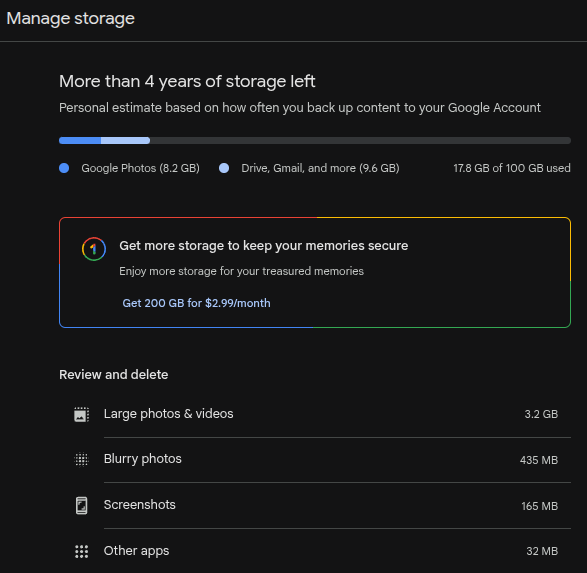
This is my online storage. From there I can manage my storage.
This is, of course, different from the storage on the phone itself. The best tool for backing up and deleting files on the phone is Cx File Explorer where you navigate to Main Storage, DCIM and Camera then sort by the largest files first.
Just for the record: GB (gigabyte) are the largest files, MB (megabyte) is 1,000 times smaller and KB (kilobyte) is 1,000 times smaller yet.
Odds are the largest files will be videos, followed by panoramic photos. Deleting duplicate and blurry photos is another way to reduce storage on the phone.
Conclusion
Google and Cx File Explorer are great tools to manage storage on phones and in the cloud.