
By Martin Jansen, Owner of Jansen-PCINFO
True Story:
Joe was working on his laptop preparing documents for printing. He dutifully saved his documents to his hard drive as he worked. He had lost documents before because his system had locked up at the most inconvenient times. These days he never let a document go unsaved as he went to lunch or attended a meeting.
Unfortunately for Joe, there is more danger to come. If only he had heard the clicking sound as his hard drive slowly started to fail. First his system started to become erratic because the operating system is on the same drive as his data. Then saving documents which took only seconds before, starting taking minutes to finish.
Mistaking this for another lockup in the making, Joe decided to reboot his computer. His computer could not find the operating system, leaving a strange error on the screen. Joe’s hard drive failed – all his data was lost. He called for help, but all his friends had no answers and could not put his hard drive back together again.
Of course Joe had not thought to backup his data.
Moral of the Story
Joe thought he was doing the right thing by saving documents and images to his hard drive without realizing that hard drives and solid state drives fail all the time. Don’t be like Joe.
Hard drives slowly fail becoming less healthy over time, while SSDs often fail all at once. As with Joe’s laptop, the operating system (such as Windows, macOS or Linux) is on the same drive as the data. Everything is lost without a backup.
How to Backup
There are several backup methods that can be used to recover data and even the operating system from a previous date and time. Linux Mint has TimeShift, macOS has Time Machine and Windows, well, you’ll need to buy software like Acronis Backup for at least $50 per year.
Windows will often encrypt hard drives with BitLocker. This makes it harder to recover files from a failing hard drive. You must know your encryption key to recover data. OneDrive will attempt to backup files from the Windows PC to the cloud, but only 5 GB of data is free. Average users will exceed the space available on OneCloud, especially if they are backing up videos and photos.
TimeShift and Time Machine are built into the OS and provide a snapshot of the OS and data. Acronis can also make a snapshot or be configured to only backup data.
Home Data
Aside from personal videos and photos the files most ignored for backup are those in the Desktop, Documents, Music, Pictures and Videos directories. In Windows, these are most likely in the C:\Users\(name) where (name) is the active profile. MacOS Finder has a little home icon on the home directory, while Linux has a similar directory structure, usually /home/(name) where (name) is the active profile.
Backup Software
For backing up home data files, there is nothing better than the old fashioned 2.5 inch hard drive in an USB enclosure. For best results, a USB 3.0 or higher like this one from Eluteng:
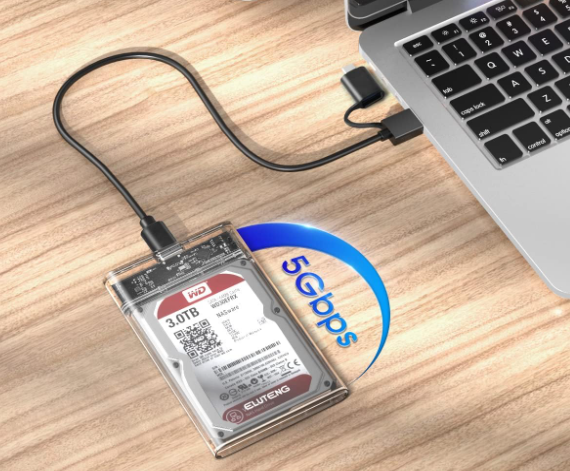
Jansen-PCINFO Home Backup uses rsync for Linux and robocooy for Windows. For a short time only, I am offering these drives for $45. This includes configuration for your unique backup needs. Text me at 920-716-4384 to take advantage of this deal.