
By Martin Jansen, Owner of Jansen-PCINFO
When Windows sucks, people start looking for alternatives. Welcome to Linux. Of course, people could turn to Apple and their range of iOS or macOS devices, but they are expensive.
No, if you want to use the same computer, just with a better operating system, Linux is the way to go.
If you have switched to Linux from Windows, then you have many questions.
From Windows to Linux
Question 1: Where is my C: Drive and the Users directory?
Linux does not have the same directory structure as Windows. Most likely your home directory (where you can find most of your files) is /home/username where username is the name first used to set up the computer. For instance, if the username was jsmith then the Documents directory for Windows: C:\Users\jsmith\Documents
And in Linux: /home/jsmith/Documents
Notice also that Windows uses backslashes to separate directories while Linux uses forward slashes. And Windows is not case sensitive for directories and filenames while Linux definitely is.
Question 2: Where do my applications get installed?
Windows installs most applications in either the C:\Program Files or C:\Program Files (x86) directory. While Linux usually installs applications in the /opt directory. Generally people don’t care as long as the application works as expected.
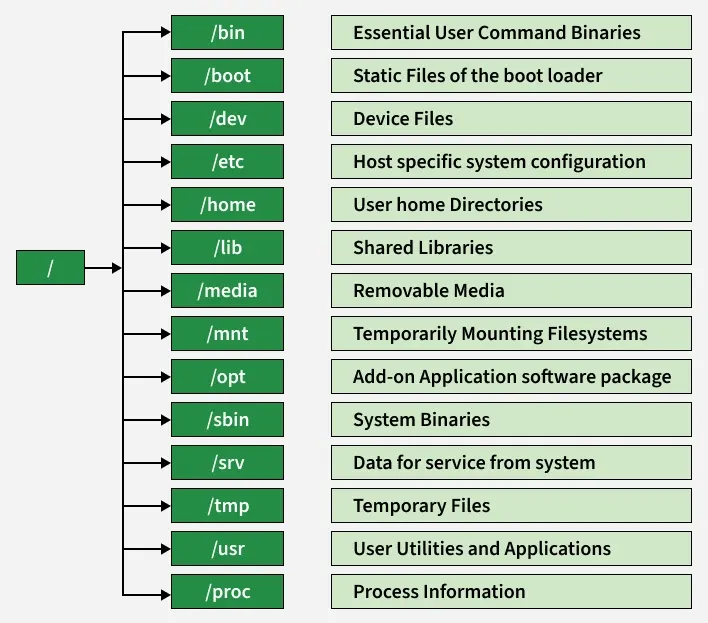
Question 3: What about the rest of file structure in Linux?
Here is a graphic:
Question 4: What happens when I plug in a USB drive?
Assuming the drive is good and readable by the operating system, Windows will assign a drive letter to the drive (like D:) and File Explorer is opened to access the files on the drive.
Most Linux distributions will automatically open a File Manager window with the files on the USB drive. Linux mounts USB drives in the /media directory.
Terminal vs Command Prompt
The primary difference between Windows and Linux is that Windows is Graphical User Interface (GUI) first, while Linux can be completely run without a GUI. In fact, Ubuntu Server is installed without any GUI – any commands are entered through the Terminal.
Many Windows users don’t know how to use the Command Prompt at all, as it is buried in the menu system. You can access the Command Prompt with a key combination of the Windows Key + R and type in cmd. Windows also offers Powershell which in Administrator mode can access the inner most operations of Windows.
In order to run Super User or root commands in Linux you first open a Terminal (Ctrl +Alt + t) and use the sudo (super user do) command. For instance, this command will update and upgrade a Debian based system: sudo apt update && sudo apt upgrade -y
The command lets the user see what is being upgraded. Microsoft, however, gives the user very little understanding when a Windows update takes place.
More Questions
Question 5: Can I run Windows programs on Linux?
Natively no, but there are plenty of Linux based alternative applications. Still, if you really need to run Windows programs, there are ways:
- WINE and Crossover Linux can run many (not all) Windows applications.
- Windows can be run in a virtual machine using VirtualBox, QEMU or VMware Workstation.
- And some people dual boot Windows and Linux.
Question 6: What about drivers for my peripherals?
Windows can install drivers to make most peripherals work, but you are better off downloading and installing from the manufacturer’s website. This is especially true for printers. Use the device manager to see any missing or malfunctioning drivers.
Linux is extremely good at installing the necessary drivers to make all peripherals work, especially on older hardware. Networked printers are detected and drivers are added during the installation of the operating system.
Question 7: What about customizing the desktop?
In Windows 11, you get the default desktop and can make minor changes. Microsoft expects you to learn their desktop operations. To make major changes, turn to third party applications like Open-Shell.
Depending on your distribution, you can experience many desktop environments (DE). Linux Mint, for instance, offers several DEs, including Cinnamon (for a full DE), Xfce for less powerful computers and Mate for a traditional Gnome 2 experience. Each looks remarkably the same with only minor changes in applications and operations. And many users spend a great deal of time customizing their desktop with themes, backgrounds and unique menu systems. Linux gives the user freedom to change much about their PC experience.
Question 8: Are there file and directory permissions?
Linux gives complete control over directory and file permissions, this is especially useful for certain applications. Windows has limited control over file permissions, for instance you can edit the permissions to deny write access to a file for a certain user. But permissions editing is something hardly ever done in Windows, while Linux permissions is something very much used every day.
Last Question: So, if I use Linux, I have to use the terminal a lot?
The answer is no. True, Linux used to be that way, but now just about everything can be done in GUI interface. In Windows 10 and 11, Microsoft has introduced a form of Debian (or other distros) which can be installed like an app through PowerShell. Seems like, even Microsoft, is aware of the power of Linux.
Conclusion
Hopefully I have answered a few questions that users new to Linux may have about the differences between Windows and Linux operations. If you have other questions, please let me know in the comments.